
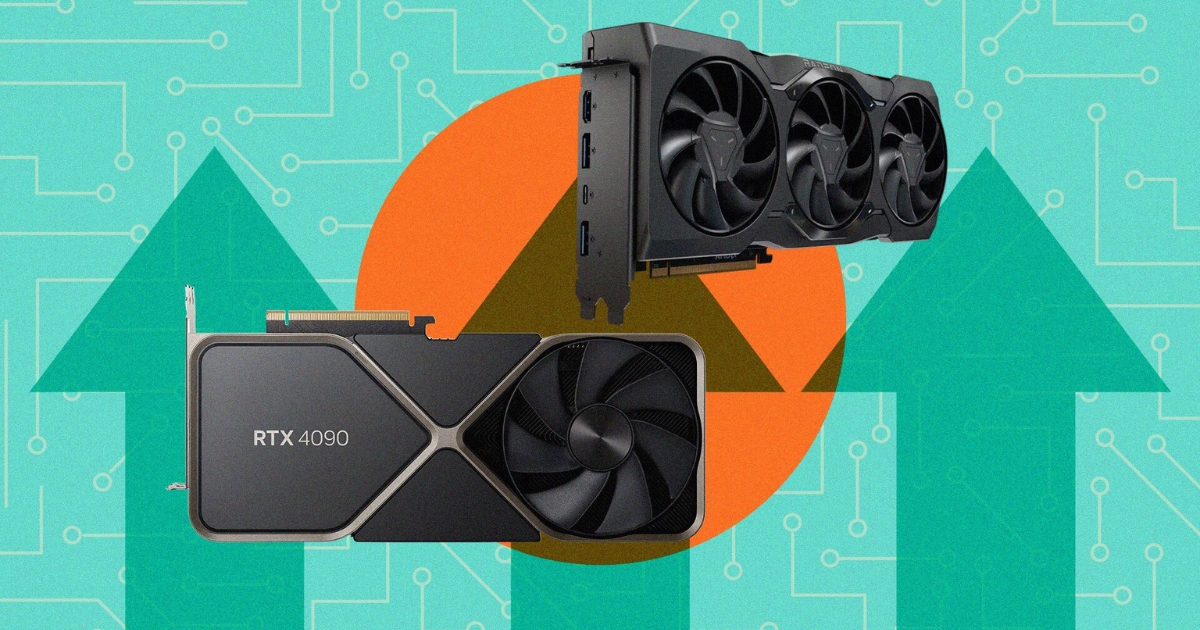
Keeping your graphics drivers updated is essential for getting the best performance out of your PC—whether you’re gaming, editing videos, or simply ensuring smooth everyday use. Updated drivers can fix bugs, improve stability, and unlock performance boosts for new games and software. However, updating them incorrectly can lead to crashes, instability, or even hardware issues. To help you avoid these problems, here’s a complete guide on how to update graphics drivers safely.
1. Know Your Graphics Card
Before you can update your driver, you need to know which graphics card your PC uses. There are two major GPU manufacturers: NVIDIA and AMD, with Intel becoming increasingly common in newer systems. You can check your GPU model by:
-
Pressing Windows + R, typing dxdiag, and checking the “Display” tab.
-
Opening Device Manager and expanding Display adapters.
Knowing this information ensures you download drivers from the correct source and avoid installing incompatible software.
2. Download Drivers Only From Official Sources
The safest way to update your graphics drivers is to download them directly from the manufacturer’s official website. Third-party sites may offer modified or outdated drivers that can harm your system. Use these official links:
-
NVIDIA: GeForce Experience or NVIDIA driver download page
-
AMD: AMD Software: Adrenalin Edition
-
Intel: Intel Graphics Driver Support page
These platforms automatically detect your GPU and present the correct driver versions, minimizing mistakes.
3. Use Built-In Tools When Available
Both NVIDIA and AMD provide software designed specifically to manage updates safely:
-
NVIDIA GeForce Experience
-
AMD Adrenalin Software
-
Intel Driver & Support Assistant
These tools check your GPU model, recommend the latest stable drivers, and handle installation with minimal risk. They are especially useful for beginners or anyone who wants to avoid manual installation steps.
4. Create a System Restore Point First
Although driver updates are usually smooth, things can go wrong. Creating a system restore point before installation ensures you can revert your PC to a working state if something breaks. To do this:
-
Open Control Panel
-
Go to System → System Protection
-
Choose your main drive and click Create
This simple step adds an extra layer of safety and can save you from a lot of troubleshooting later.
5. Uninstall Old Drivers (When Necessary)
Sometimes old driver files can conflict with new ones, especially if you’re switching GPU brands or experiencing glitches. In such cases, a clean installation is the safest route. Tools like Display Driver Uninstaller (DDU) can help remove all old driver files before installing the new version. Use this only when necessary, and follow instructions carefully to avoid deleting unrelated files.
6. Avoid Beta Drivers Unless You Need Them
Manufacturers often release beta drivers for testing new features or game optimizations before full public release. While tempting, these drivers can be unstable. To stay safe:
-
Stick to WHQL-certified or stable releases
-
Only use beta drivers if a new game requires them or if you know what you’re doing
Stable drivers are tested more thoroughly and are far less likely to cause crashes or system instability.
7. Restart Your System After Installation
After installing a new driver, always restart your PC, even if the installer doesn’t ask you to. This ensures all system changes are applied correctly, prevents conflicts, and allows Windows to recognize the updated components properly.
8. Keep Windows Updated
Graphics drivers work closely with the Windows operating system. Running outdated versions of Windows can lead to compatibility issues, even with the newest GPU drivers. Regularly check for updates in Settings → Windows Update to guarantee maximum compatibility and performance.
Final Thoughts
Updating your graphics drivers safely doesn’t have to be complicated. By downloading drivers from official sources, creating a restore point, avoiding risky beta versions, and using the correct tools, you can ensure smooth performance without putting your PC at risk. Regular driver updates not only keep your system stable but also unlock better graphics, improved frame rates, and the best possible experience in modern games and applications.